
Install Ollama and a Local LLM on macOS and Windows
Step by step guide to install Ollama, download a local AI model on Mac or Windows, test it, and connect it to your trading journal for free.
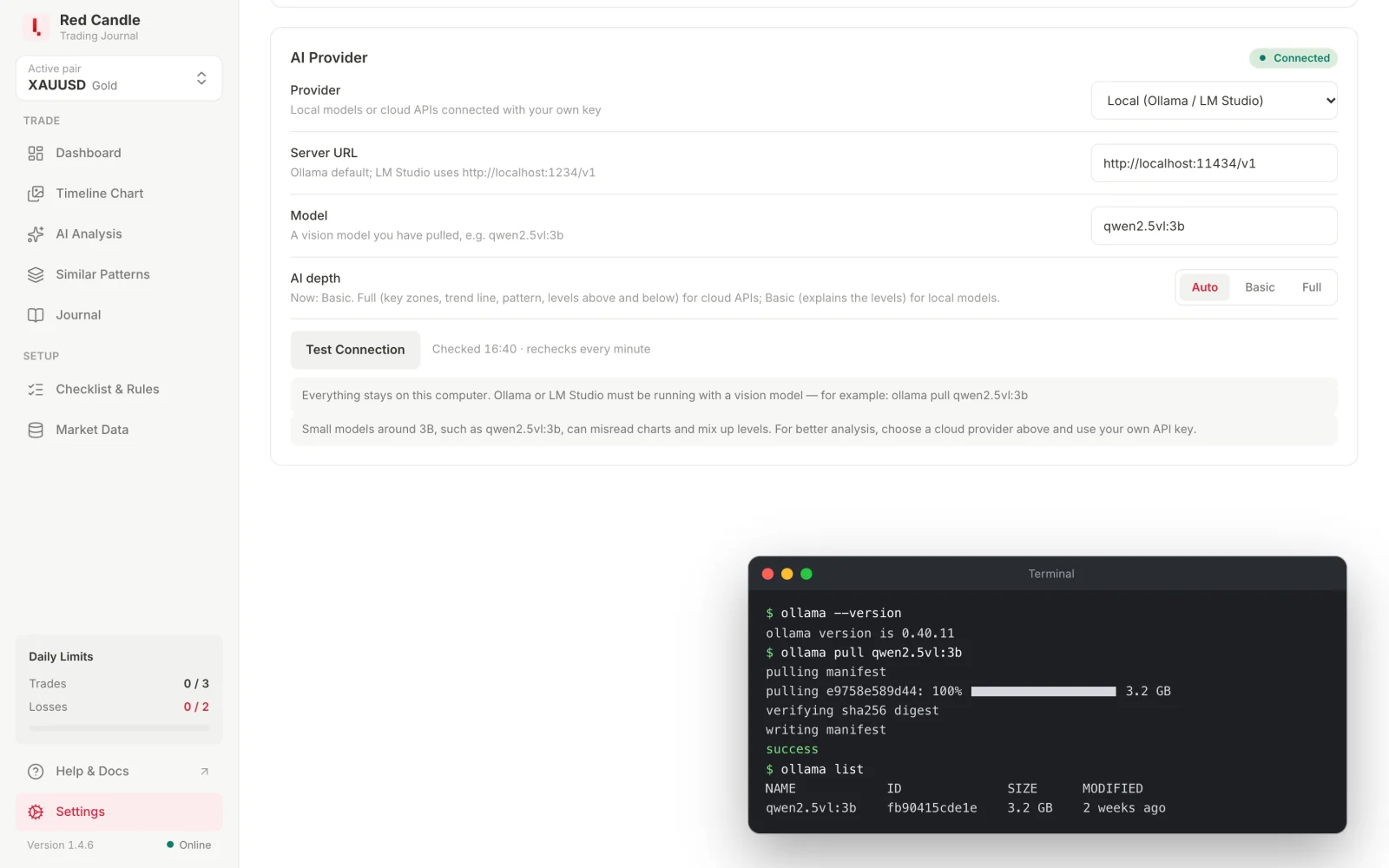
A local LLM is an AI model that runs on your own computer instead of on a company's server. Ollama is a free app that downloads these models and runs them for you on macOS and Windows. After the first download, the model works without an internet connection, costs nothing per request, and your notes and chart screenshots never leave your computer.
This guide shows how to install Ollama, choose and download a model, check that it works, and connect it to Red Candle.
What you need
| macOS | Windows | |
|---|---|---|
| System | macOS 14 Sonoma or newer | Windows 10 22H2 or newer, Home or Pro |
| Processor | Apple Silicon (M1 or newer) uses the GPU. Intel Macs run on the CPU only, which is slower. | Any recent PC. An NVIDIA or AMD graphics card makes replies faster. |
| Memory (RAM) | 8 GB for a small model, 16 GB or more for a larger one | 8 GB for a small model, 16 GB or more for a larger one |
| Disk space | Ollama plus 3 to 6 GB per model | About 4 GB for Ollama plus 3 to 6 GB per model |
On Windows with an NVIDIA card, update the driver to version 551.61 or newer. AMD cards work with a current Radeon driver.
Choose a model
For a trading journal you want a vision model, one that can read chart screenshots as well as text. Red Candle's guides use Qwen2.5-VL, which Ollama offers in several sizes:
| Model | Download | Suits | What to expect |
|---|---|---|---|
qwen2.5vl:3b | 3.2 GB | 8 GB RAM | Fine for checklist rules and short explanations. It can misread charts and mix up levels. |
qwen2.5vl:7b | 6.0 GB | 16 GB RAM or more | Reads and explains charts noticeably better, and replies more slowly. |
Start with the 3B model if you are not sure. You can download the 7B model later and switch in a minute.
Install Ollama on macOS
- Go to ollama.com/download and download the macOS version.
- Open the downloaded
Ollama.dmgand drag Ollama into Applications. - Open Ollama from Applications. The first time, it may ask for permission to install the
ollamacommand line tool. Allow it, because you will use it in the next steps. - The Ollama icon appears in the menu bar at the top of the screen. That means it is running.
To check the installation, open Terminal (press ⌘ Space and type "Terminal") and run:
ollama --version
You should see a version number. Qwen2.5-VL needs Ollama 0.7.0 or newer. If yours is older, download Ollama again to update it.
Install Ollama on Windows
- Go to ollama.com/download and download the Windows version,
OllamaSetup.exe. - Run it and follow the installer. It installs into your user folder and doesn't need administrator rights.
- Ollama starts by itself. Its icon appears in the system tray, at the bottom right next to the clock.
To check the installation, open PowerShell (press the Windows key and type "PowerShell") and run:
ollama --version
If PowerShell says ollama is not recognized, close it and open a new PowerShell window. A window opened before the installation doesn't know the new command yet.
Download the model
The commands are the same on macOS and Windows. In Terminal or PowerShell, run one of these and wait until it says success:
ollama pull qwen2.5vl:3b
ollama pull qwen2.5vl:7b
Then list your installed models:
ollama list
The name in the list, for example qwen2.5vl:3b, is exactly what you will type into Red Candle later.
Test the model in the terminal
Before you connect anything, check that the model answers:
ollama run qwen2.5vl:3b
Type a short question, for example "Explain what a higher low is in one sentence.", and press Enter. The first answer can take a minute while the model loads into memory. Answers after that are faster. Type /bye to leave.
You can also open http://localhost:11434 in your browser. If it shows "Ollama is running", the local server that other apps connect to is ready.
Connect the model to Red Candle
- Open Settings → AI Provider.
- Provider: choose Local (Ollama / LM Studio).
- Server URL:
http://localhost:11434/v1. This is Ollama's default and is already filled in. - Model: the name from
ollama list, for exampleqwen2.5vl:3b. - Click Test Connection.
The first test loads the model and can take 1 to 2 minutes. While it waits you see "Server found · waiting for the model". When it shows "✓ Connected · responded in …s", you're ready. No API key is needed. Leave AI depth on Auto, which uses Basic for local models.
Now you can use Explain with AI in AI Analysis and Similar Patterns, and the other AI features, with everything staying on your computer. The full settings are described in Connect an AI provider.
Where models are stored
Models are large files, so it helps to know where they go:
- macOS: in the
.ollamafolder in your home folder. - Windows: in the
.ollamafolder in your user folder. To store models on another drive, set the environment variableOLLAMA_MODELSfor your user account to a folder on that drive, then quit Ollama from the tray and open it again.
To free up space, remove a model you no longer use:
ollama rm qwen2.5vl:7b
Fix common problems
- Red Candle shows "Not connected". Ollama isn't running. Open it again from Applications or the Start menu, then click Test Connection.
- The model isn't found. The name in Model doesn't match
ollama list. Copy the name exactly, including the part after the colon. - Replies are very slow. The model shares memory with your other apps. Close heavy apps such as browsers with many tabs, or use the 3B model.
- The download stops. Run the same
ollama pullcommand again. It continues where it stopped. - Explanations mix up numbers. Small local models can do that. Compare the numbers with the panels in the app, try the 7B model, or use a cloud provider with your own API key for better explanations.
More fixes are in AI isn't connected or is slow.
Key takeaways
- Ollama runs AI models on your own computer on macOS 14 or newer and Windows 10 22H2 or newer.
- For chart screenshots, use a vision model such as
qwen2.5vl:3b(8 GB RAM) orqwen2.5vl:7b(16 GB RAM). - Install Ollama, run
ollama pull, check withollama list, and test withollama run. - In Red Candle, choose Local (Ollama / LM Studio), enter the model name and click Test Connection.
- A local model is free and private, but small models make more mistakes, so always check the numbers.
Try it in Red Candle
Keep your checklist, daily limits and trading journal together on your computer.
Download AppContinue in the docs
Install Ollama and Qwen (local AI) →Connect an AI provider →AI isn't connected or is slow →ⓘ Educational content, not financial advice. Trading involves risk, and past results don't guarantee future results.
Related articles

How to Use AI Analysis in Your Trading Journal
What AI Analysis in Red Candle does well, how to set it up, and how to read structure, levels and the AI explanation step by step.
Read article →
AI Forex Chart Review for Your Trading Journal
Review an MT5 chart with AI, check the explanation against the candles, and record your own observations in a trading journal.
Read article →How to Use Similar Patterns the Right Way
Set up Similar Patterns in Red Candle, choose settings that fit how you trade, and read matches, outcomes and drawdown without overreading them.
Read article →